Proppely training · Ep. 20 · 0:49
How to track time on a work order in Proppely
Clock time on the job you are working, on site or driving, log time you already did, and send your week for approval.
Step by step
Track time on a work order
Open the work order you are working on and click "Start on site" (or "Driving" on the way there).
The clock keeps running in the top bar while you move around the app.
When the job is done, click "Stop". Your time is on the job, with its labor cost.
Forgot to start the clock? Click "Log time", enter how long and what you did, and click "Save time".
Under Home → Time → Week, check your week and click "Submit week". A manager approves it.
Chapters
More about it
More training videos
All 21, by task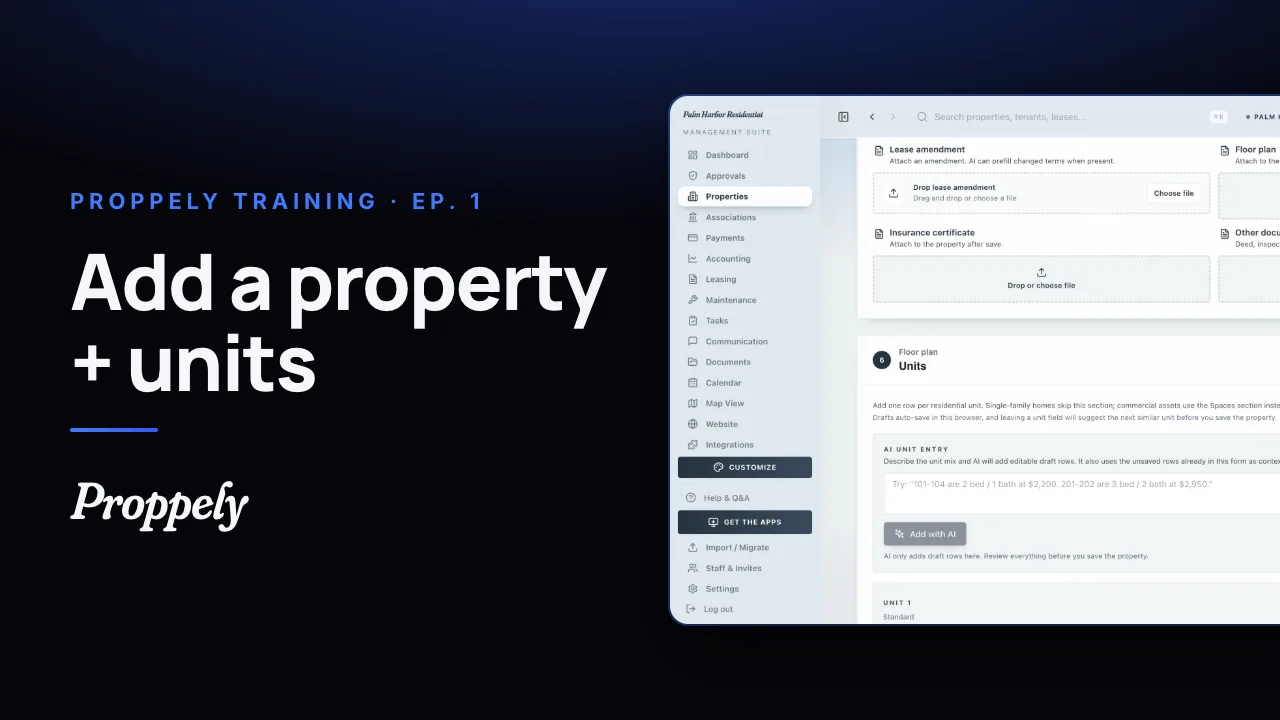 1:20Ep. 1 · Properties and tenantsAdd a property and its units
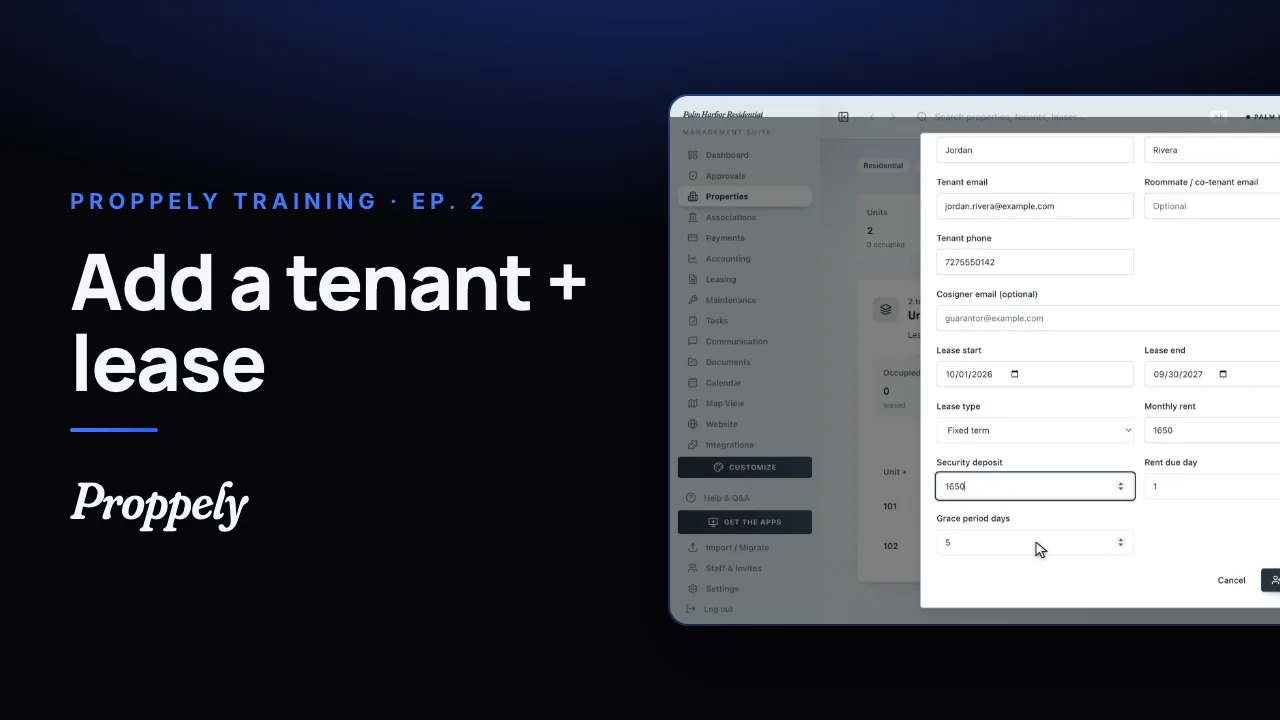 0:50Ep. 2 · Properties and tenantsAdd a tenant and lease
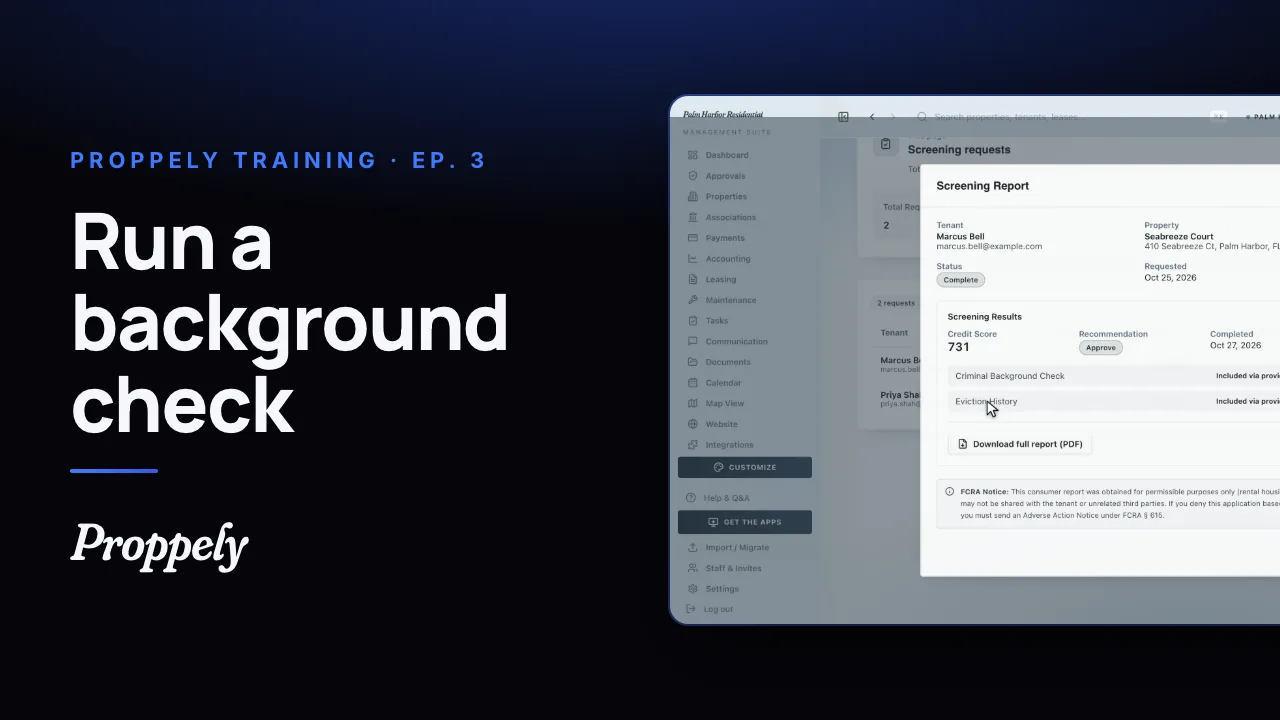 0:52Ep. 3 · Applications and screeningRun a background check
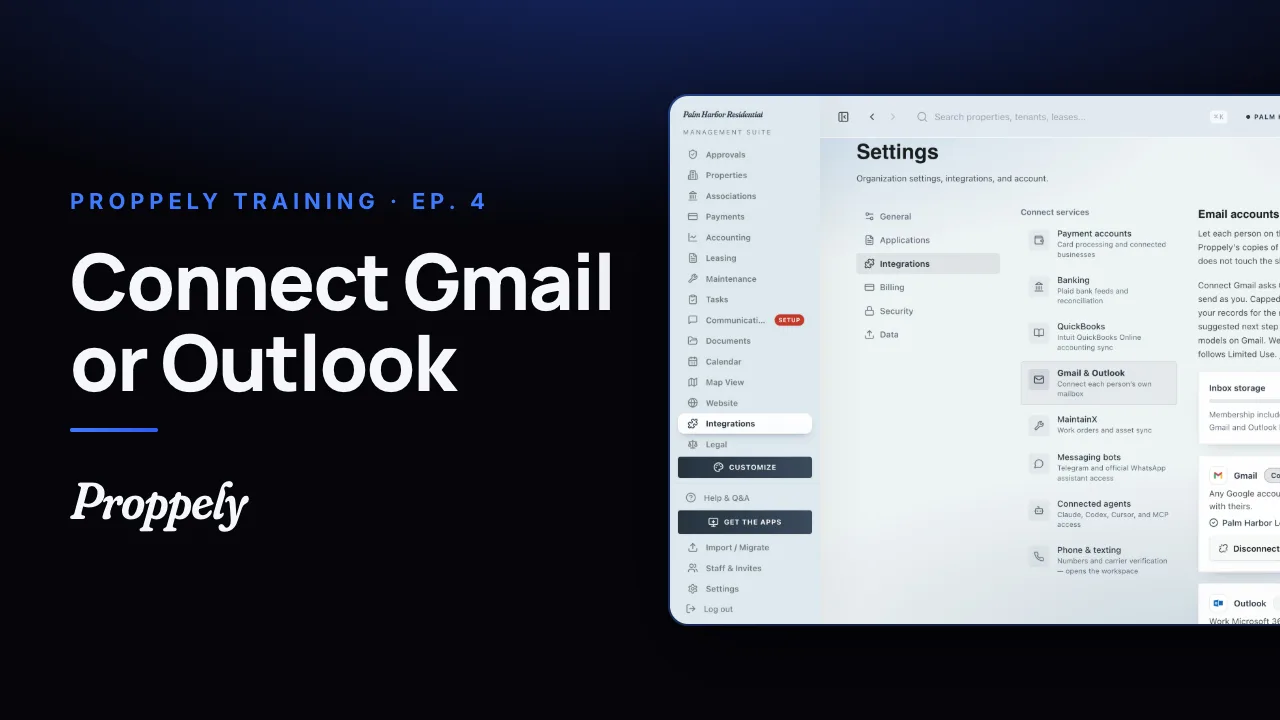 1:06Ep. 4 · Inbox and textingConnect your email
 1:07Ep. 5 · Inbox and textingVerify your texting number
 1:19Ep. 6 · Applications and screeningHow a renter applies
 0:57Ep. 7 · PaymentsSet up Proppely Payments
 0:50Ep. 21 · Maintenance and field workReceive parts and give them to a job
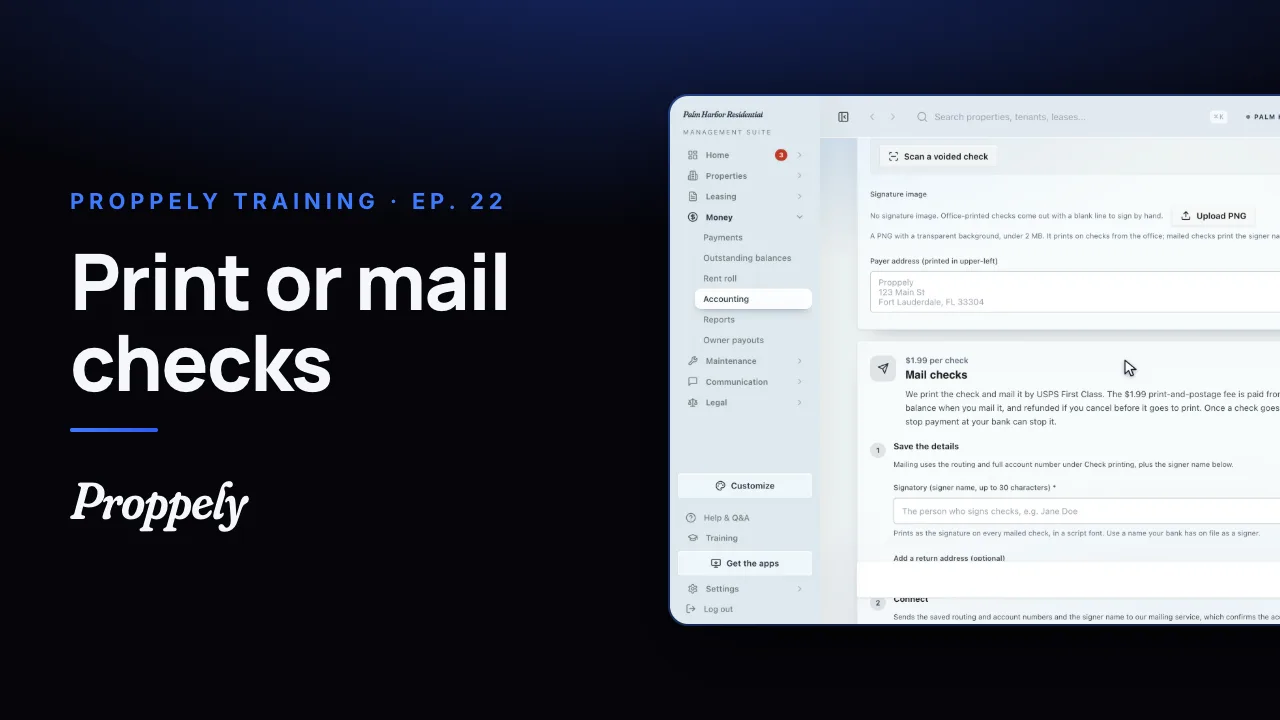 0:55Ep. 22 · PaymentsSet up check printing and mailing
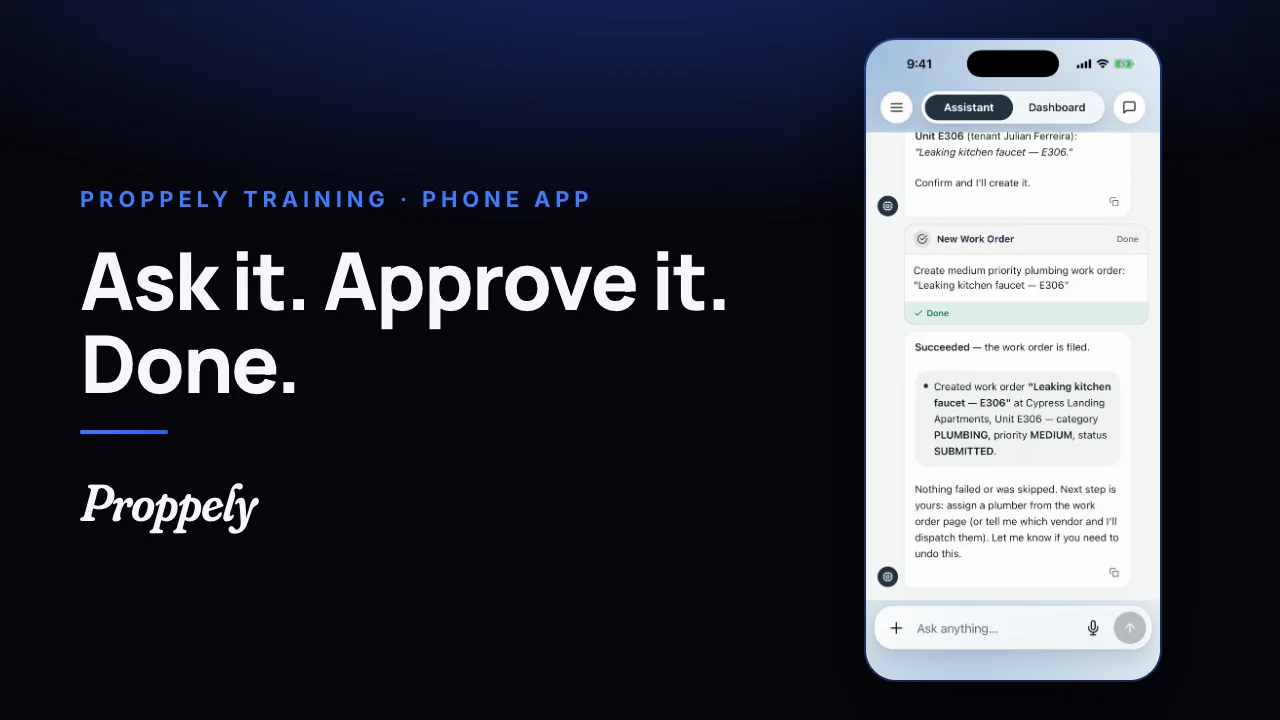 0:35Ep. 23 · The phone appYour assistant in the Proppely app
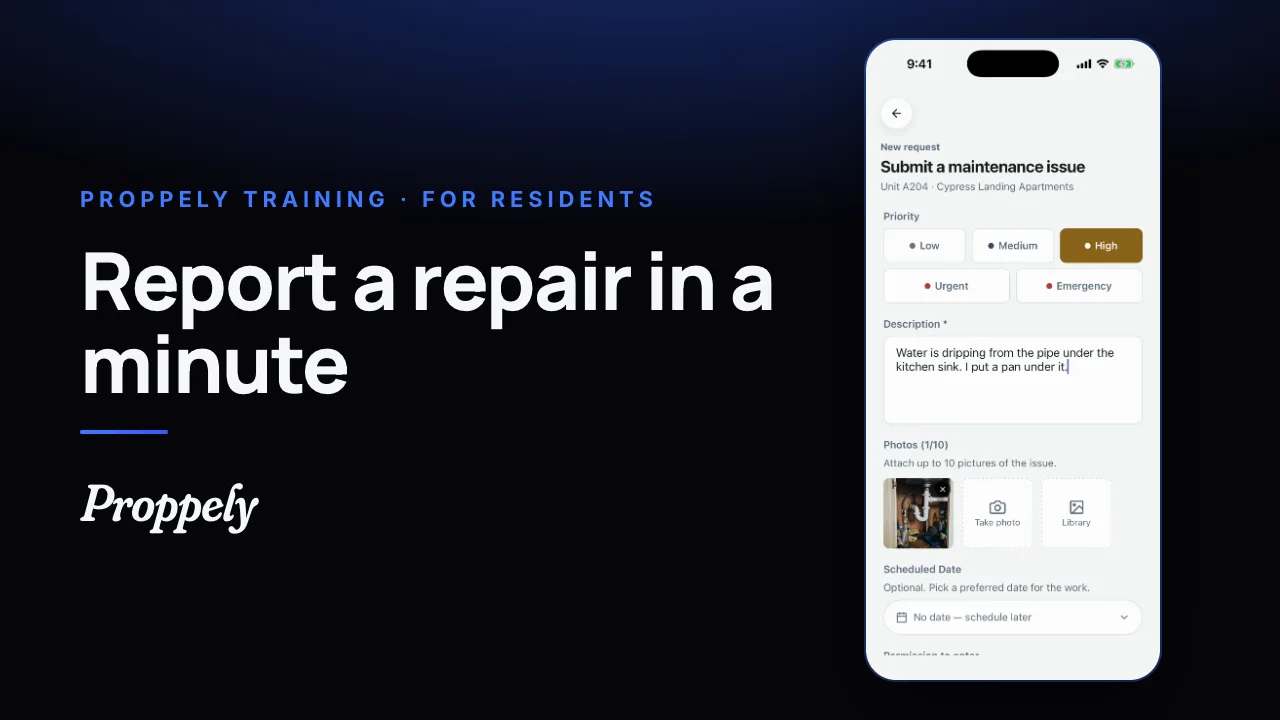 0:39Ep. 24 · The phone appReport a repair in the Proppely app
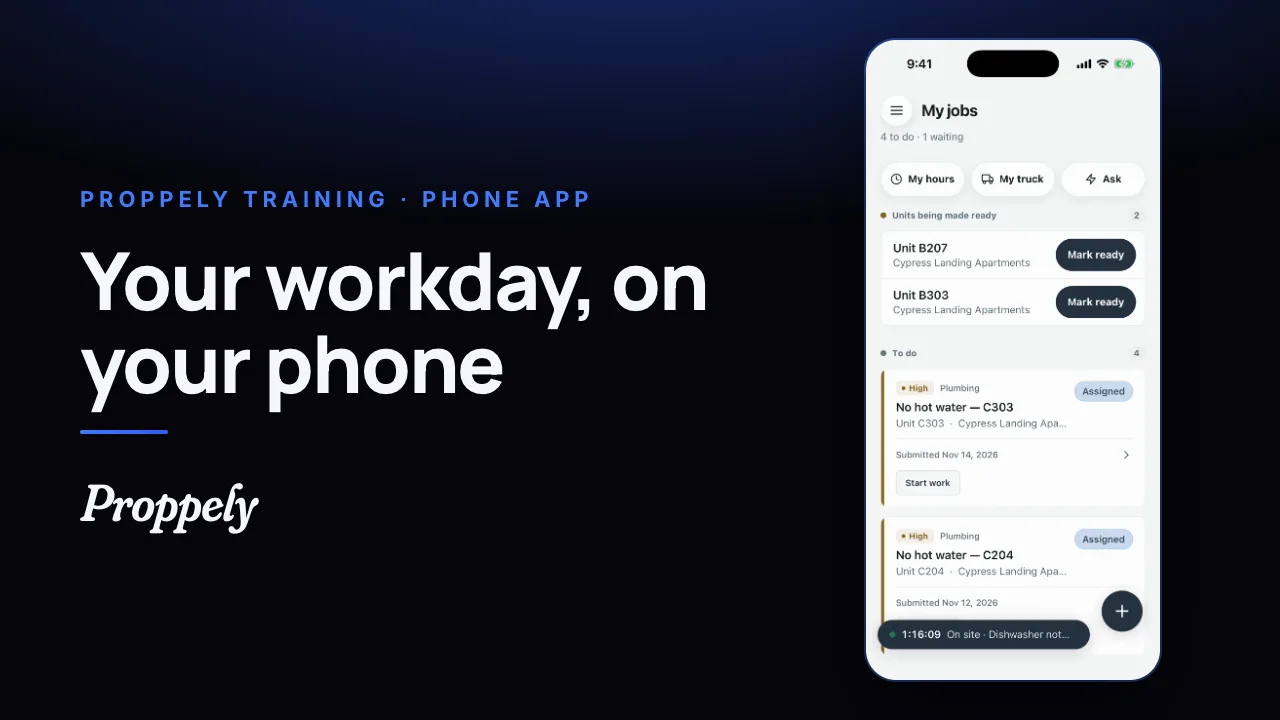 0:31Ep. 25 · The phone appYour workday in the Proppely app
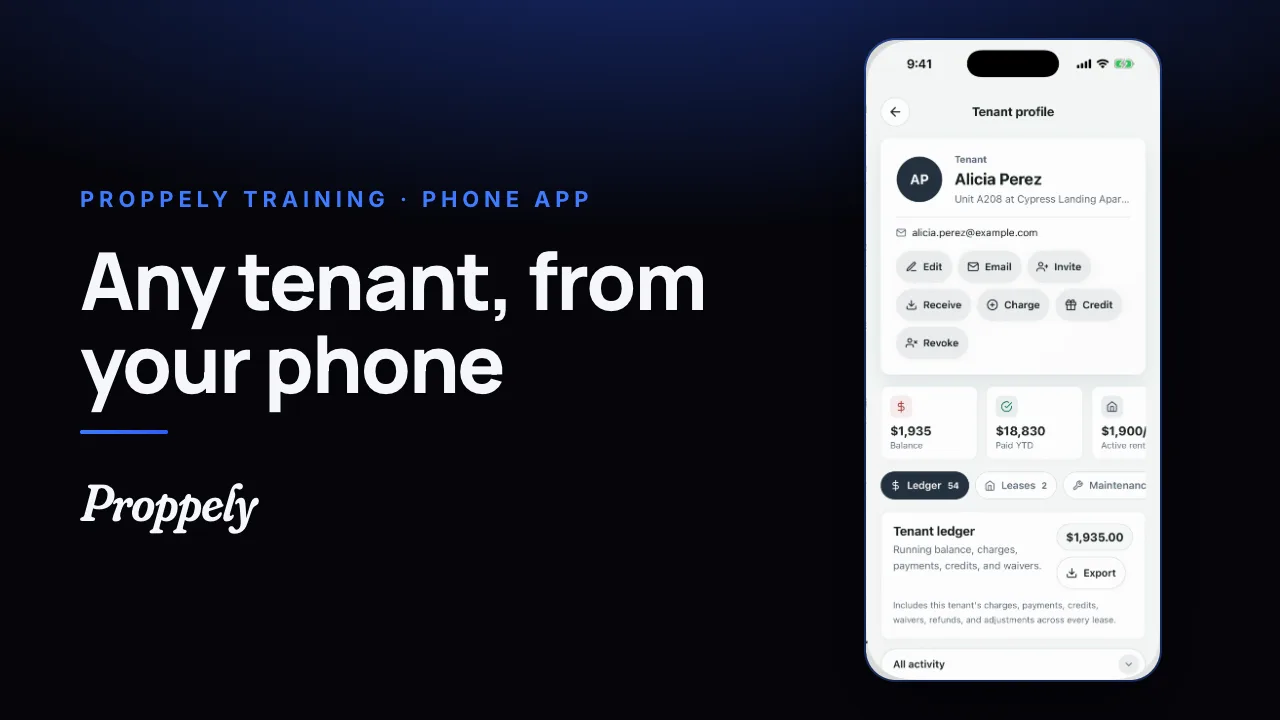 0:25Ep. 26 · The phone appFind a tenant and their balance
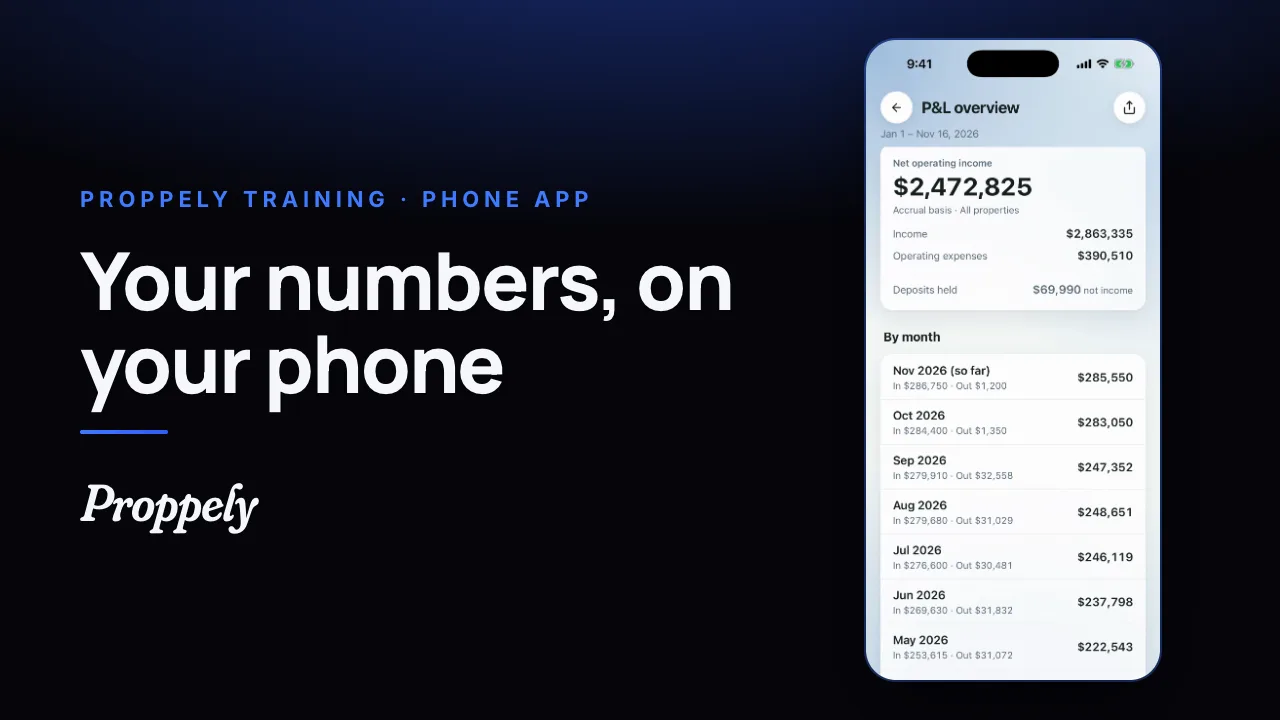 0:28Ep. 27 · The phone appYour reports in the Proppely app
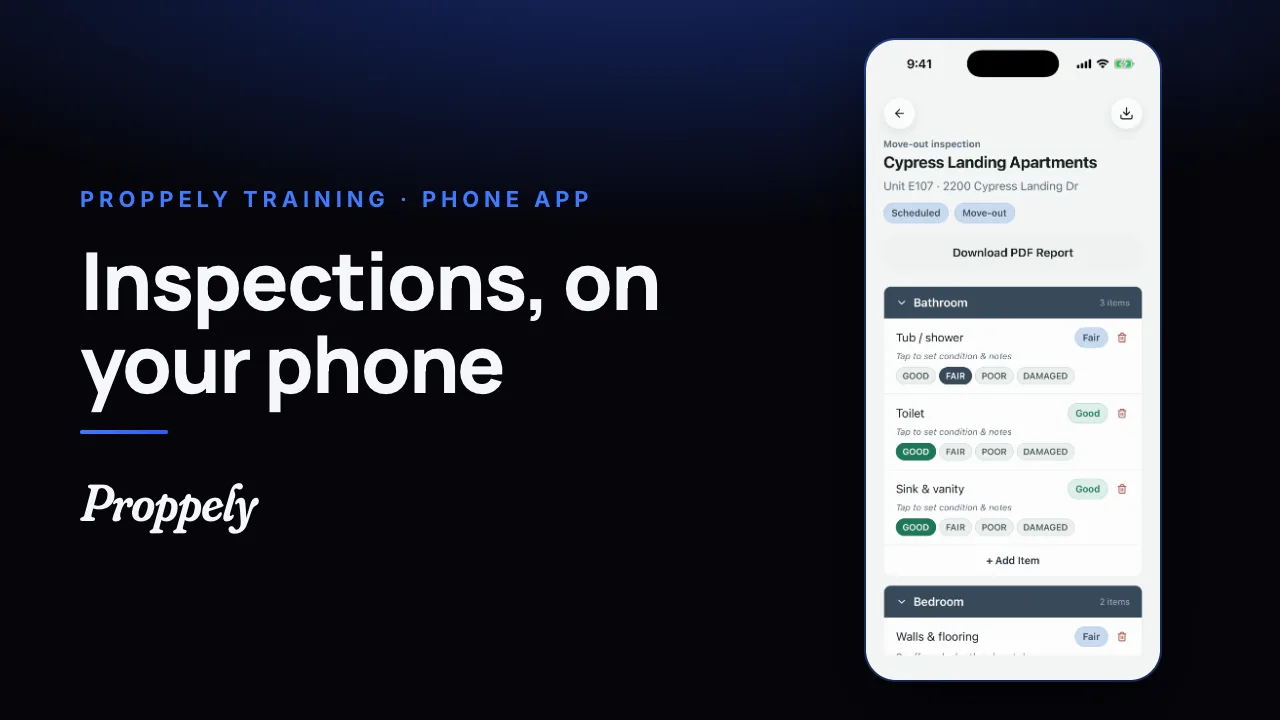 0:32Ep. 28 · The phone appDo an inspection in the Proppely app
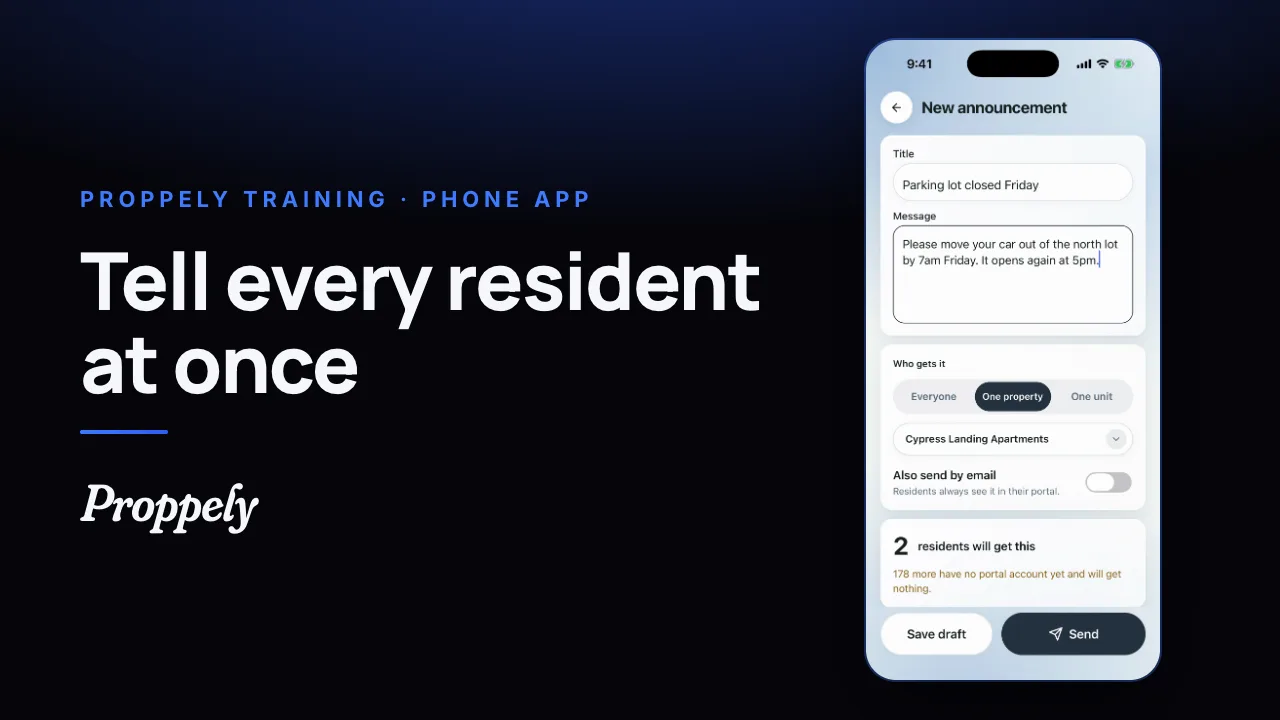 0:28Ep. 29 · The phone appSend residents an announcement
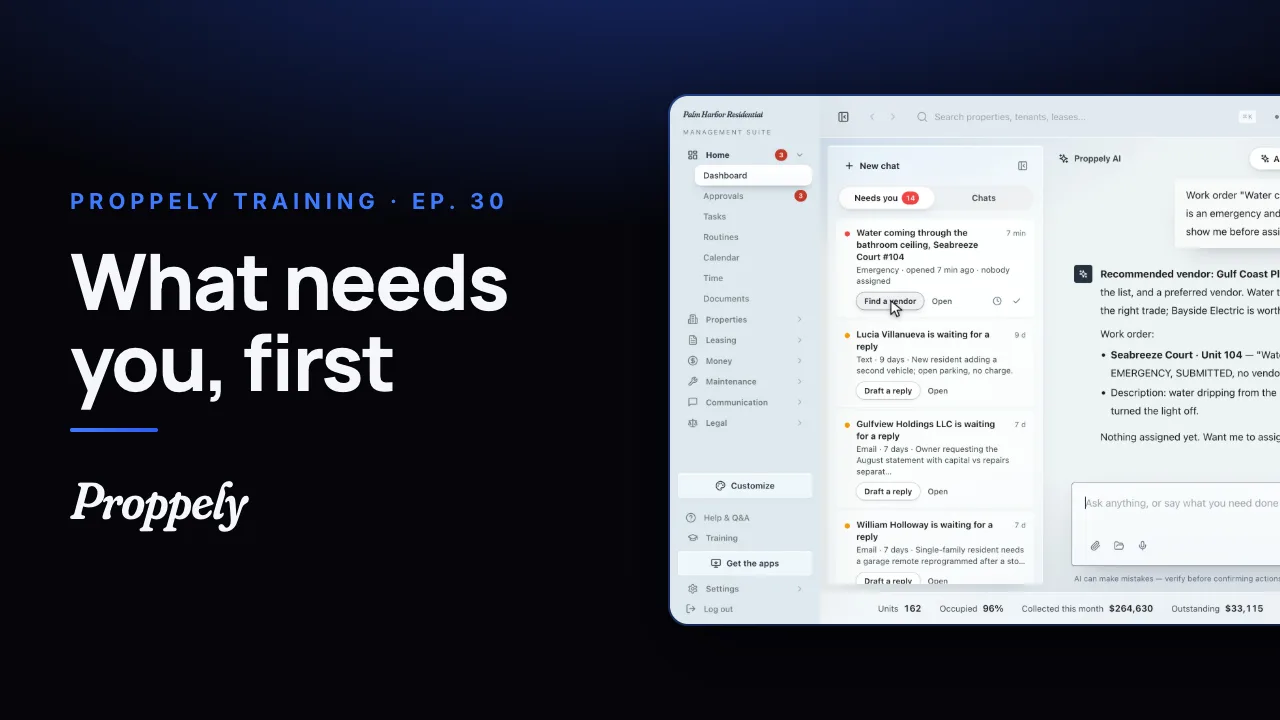 1:12Ep. 30 · Your assistantWhat needs you, first
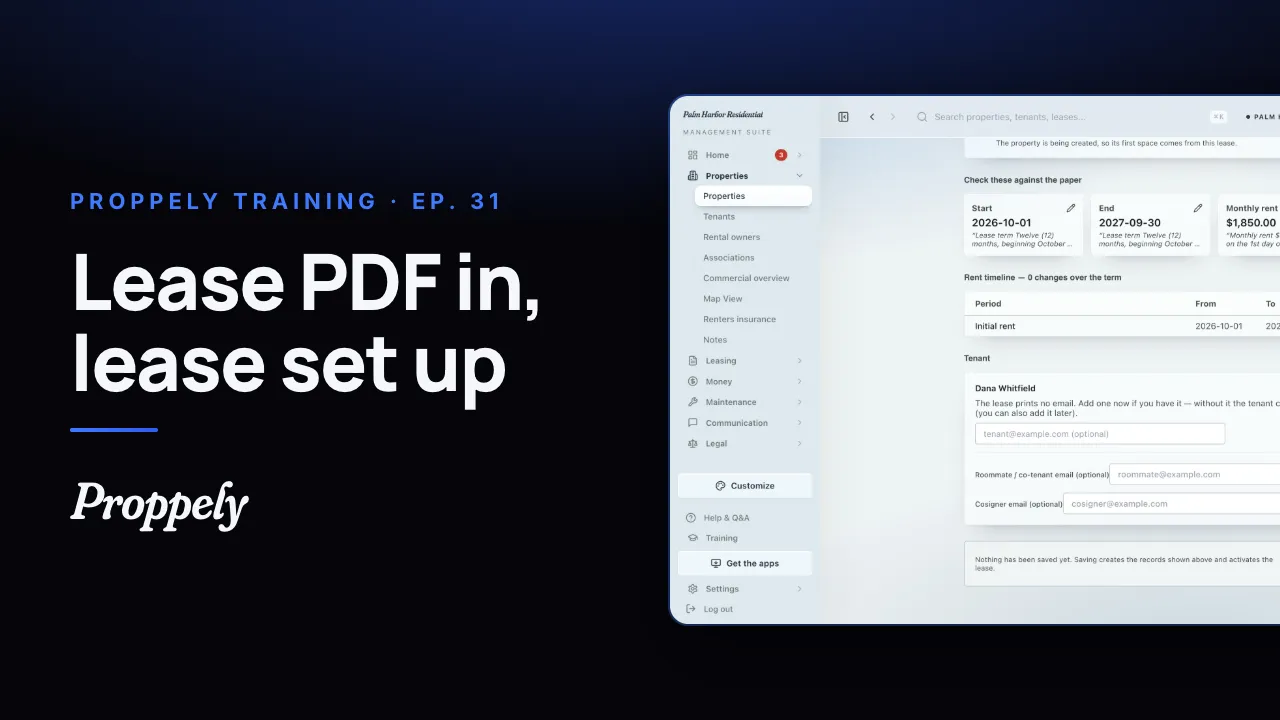 0:44Ep. 31 · Properties and tenantsAdd a lease from the signed PDF
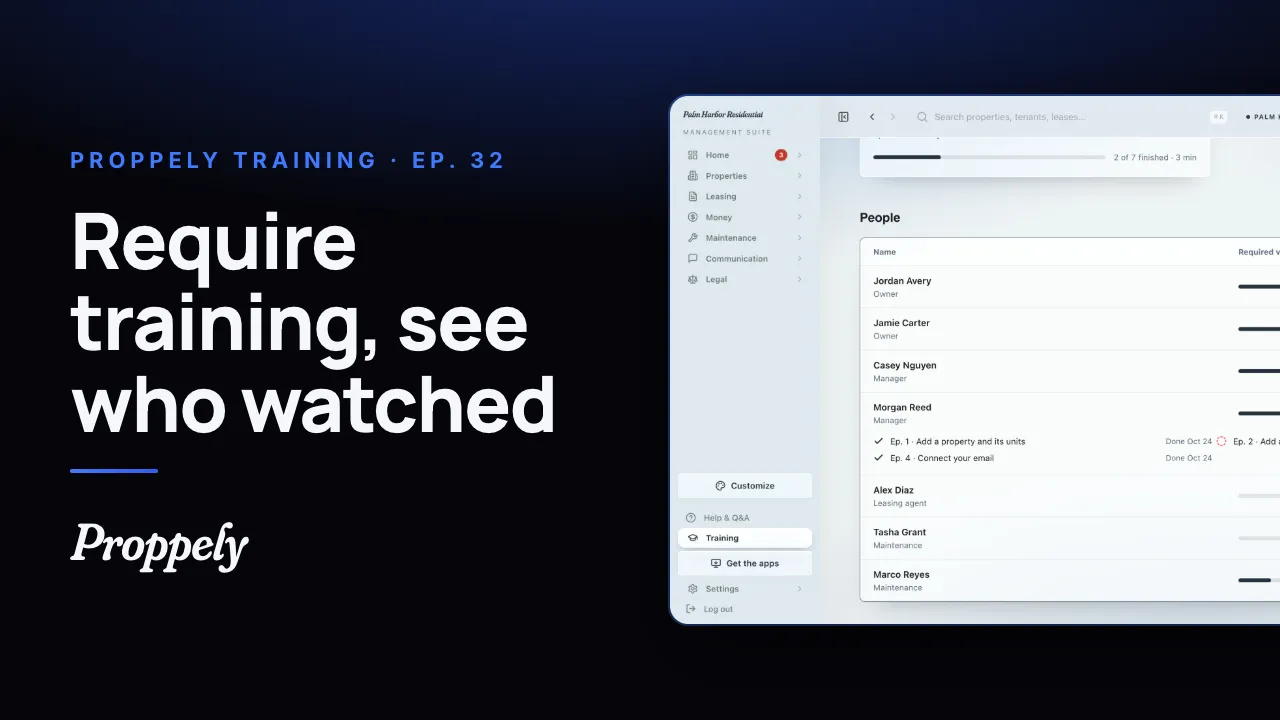 1:01Ep. 32 · Your teamRequire training for your team
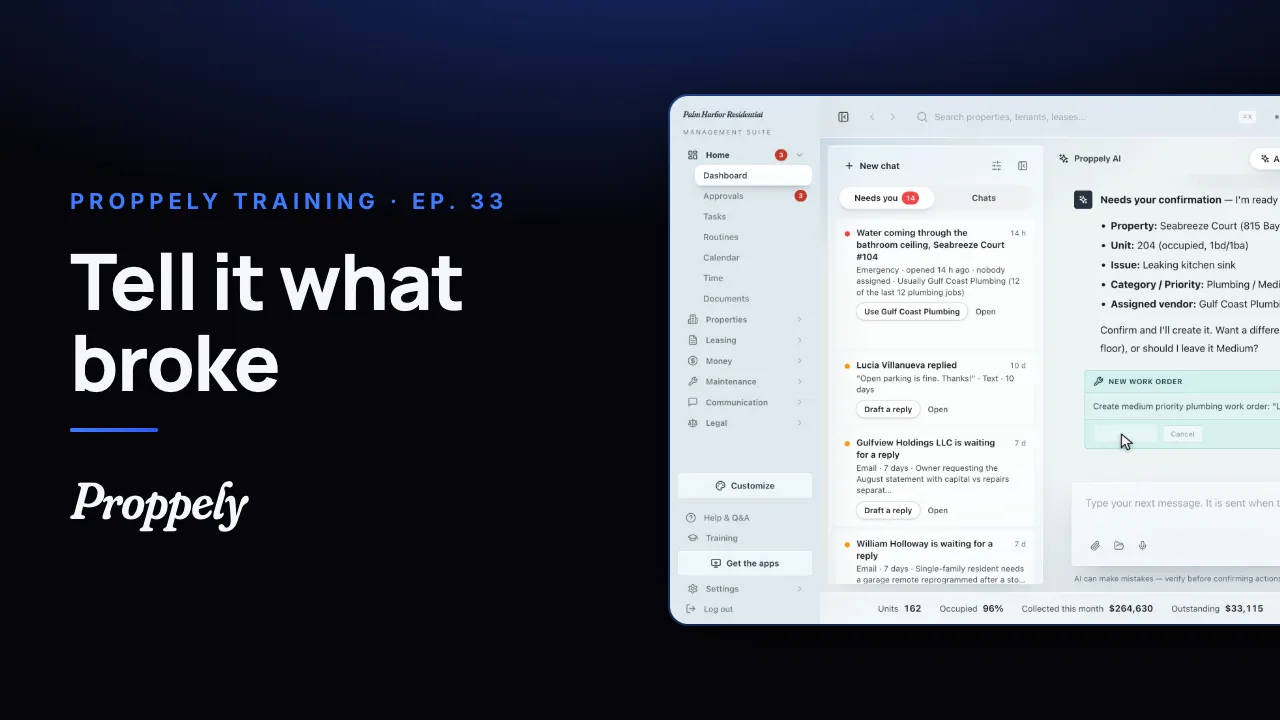 0:35Ep. 33 · Your assistantOpen a work order by asking the assistant
Try it on your own portfolio.
Unlimited units, free until you set up online payments.